The Best Warframe Settings to Change for Smoother Gameplay
If Warframe feels weird, clunky, or just not as smooth as it should, there’s a good chance your settings are part of the problem.
Warframe has a lot of options that can seriously improve how the game feels once you tweak them properly. In this guide, I’ll go over the most important settings you should change to make movement, combat, chat, and general gameplay feel much better.
No fluff — just the settings that matter.
Controls: Custom Keybinds and Gear Hotkeys
One of the most important settings to check first is custom keybinds.
Rebinding your keys to match your playstyle can drastically improve your comfort and performance, especially in a fast-paced game like Warframe.
The biggest thing to focus on here is Gear Hotkeys.
A lot of players don’t realize this, but you can hotkey the first 12 items on your Gear Wheel. This includes things like:
- Energy Pads
- Archwing Launchers
- Necramechs
- Specters
- Any other gear items you use often
Instead of opening the Gear Wheel every time, you can instantly use these items with a keybind. This makes a huge difference in missions where speed matters.
Aim Sensitivity
Next, check your aim sensitivity.
When you first jump into Warframe, the default sensitivity can feel pretty wild. Personally, I’m used to high sensitivity, so I didn’t change mine much, but this is completely personal.
If aiming feels too fast, too slow, or just uncomfortable, tweak it right away. Don’t force yourself to get used to bad settings. A small sensitivity change can make aiming feel much smoother.
Invert Tap/Hold Abilities
The Invert Tap/Hold Abilities setting is all about preference, but it can be extremely useful depending on the Warframe you play.
Take Nova’s fourth ability, Molecular Prime, for example.
By default:
- Tap = Slow
- Hold = Speed
That’s great if you’re playing Slow Nova, especially in high-level missions where slowing enemies helps you survive longer.
But if you mostly play Speed Nova, such as in Defense missions to clear waves faster, or Survival missions to increase enemy flow and loot, then you may want to invert the ability. That way, speed becomes the tap action instead of the hold action.
This setting can make certain Warframes feel much better to play.
Reload with Context Action Input
You should definitely turn Reload with Context Action Input off.
This setting can cause you to reload by accident when you’re trying to interact with something.
For example, imagine you’re hacking a console with only a few seconds left, but instead of interacting properly, your character reloads. That can easily cost you the mission objective.
Turning this off helps prevent those annoying accidental reloads.
System Settings
There isn’t too much to change here, but a few settings are worth checking.
Make sure Cross Platform Play is turned on. It usually is by default, but it’s still worth confirming.
You can also lower your Matchmaking Ping Limit if you want better connections. Just keep in mind that the lower you set it, the fewer players you may match with.
Your region is usually selected automatically, but if you’re stuck waiting in public lobbies and nobody joins, switching regions might help.
Social Settings
There are some really useful options under Social settings.
Steam Auto Login
If you’re on PC and play through Steam, make sure Steam Auto Login is enabled.
This lets you skip typing your password every time you launch the game, which is super convenient. You can set it up from the login screen by linking your Steam account.
Just make sure you only enable this on your personal device.
Turn Off Region Chat
Region Chat is something I recommend turning off.
You’re usually not missing anything important — mostly spam, arguments, and chaos. Pretty much every Warframe player agrees that turning it off makes the chat experience cleaner.
Turn On Chat Message Timestamps
I highly recommend turning on Chat Message Timestamps.
This is especially useful if you trade a lot.
For example, if someone messages you while you’re away, timestamps help you see whether they contacted you a few seconds ago or 10 minutes ago. That way, you know whether they’re probably still waiting or already gone.
It gives you much better context when checking your messages.
Turn Off Inline Private Messages
I also recommend turning off Inline Private Messages.
When this setting is on, private messages can start mixing together. If you’re chatting with multiple people, messages from one player can appear in another player’s conversation window, which gets confusing fast.
You might end up replying to the wrong person or losing track of who said what.
Turning this off keeps each private conversation in its own tab, which is much cleaner.
Profanity Filter
The Profanity Filter is completely up to you.
Personally, I prefer turning it off because I don’t like normal words being censored. If someone says something mild, it doesn’t really bother me.
But if you prefer to keep chat cleaner, you can leave it on.
Interface Settings
Damage Numbers: Switch from Stacked to Cloud
Under Interface settings, change your damage numbers from Stacked to Cloud.
This makes damage numbers appear around enemies instead of directly on top of them. It keeps your screen clearer and makes it easier to see what you’re actually shooting.
Compact Damage Numbers
Turn on Compact Damage Numbers.
Instead of showing huge numbers in a long format, the game will shorten them. For example, instead of a massive number taking up half your screen, it will display it in a cleaner, compact way.
Same damage, less visual clutter.
Show Affinity Numbers
I recommend turning Show Affinity Numbers off.
Most players don’t really need to see how much affinity they gained during combat. What matters more is being able to clearly see damage numbers and what’s happening on screen.
Turning this off helps reduce unnecessary clutter.
Sniper Scope Zoom
If you don’t like the full blackout effect when using sniper scopes, you can disable Sniper Scope Zoom and keep a more normal zoom style.
This one is personal preference, but it’s definitely worth testing.
Video and Audio Settings
Video settings depend entirely on your hardware.
Adjust them based on your frame rate, monitor, and visual preferences. If your game feels choppy, lower the more demanding options until your performance feels stable.
Audio settings are the same. Customize them to your taste. There isn’t anything here that is absolutely required for gameplay quality, so just set it up however you like.
Accessibility Settings
Hold to Sprint
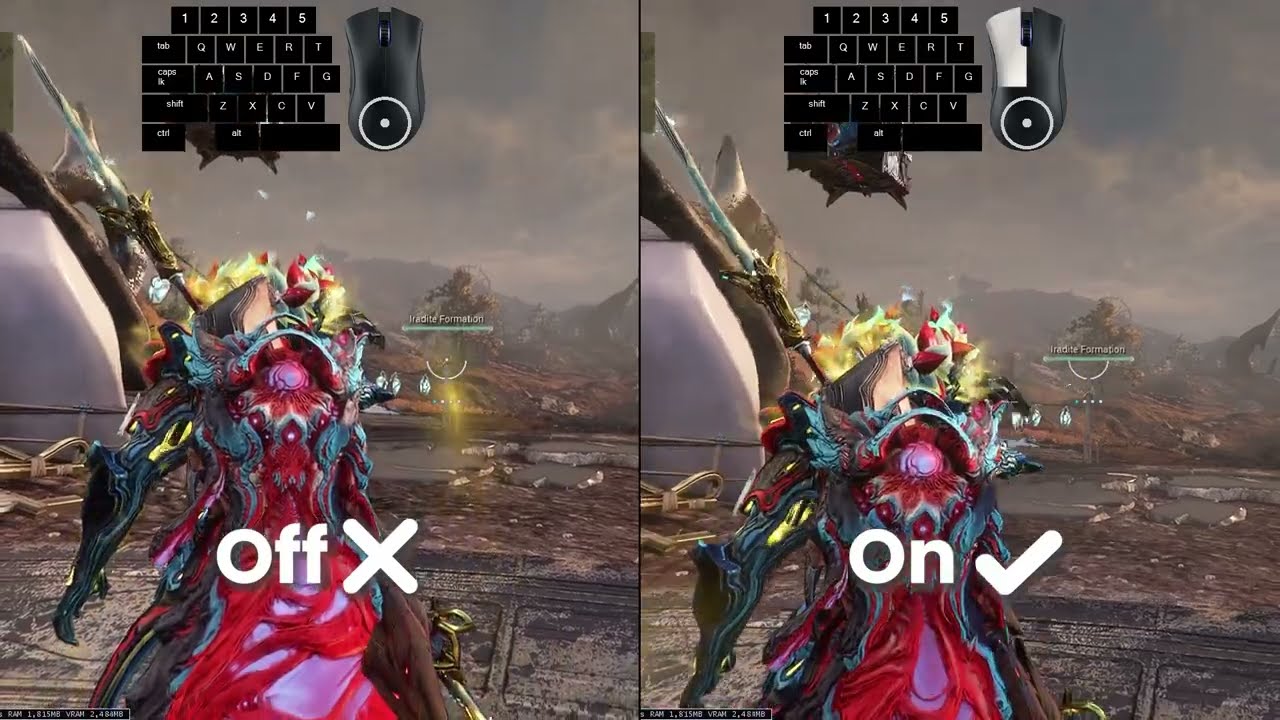
Turn Hold to Sprint off.
This lets you sprint with a single tap instead of holding the key down. Since Warframe is so movement-heavy, this makes gameplay feel much smoother and more comfortable.
Fire Manual Trigger Weapons Continuously
Turn on Fire Manual Trigger Weapons Continuously.
This is amazing for semi-auto weapons because it lets them fire continuously while holding the button, based on their fire rate.
It saves your fingers and makes semi-auto weapons much more comfortable to use.
Repeated Button Presses
For repeated button presses, set this to Hold.
This is especially helpful in missions where you have to spam a button, like certain Kahl missions. Instead of repeatedly pressing the same key over and over, you can just hold it down.
Much easier, much more comfortable.
Enemy Highlights
If enemies blend into the background, turn on Enemy Highlights.
You can choose a custom color and adjust the intensity to make enemies stand out more clearly.
This is great for visibility, accessibility, and general gameplay comfort, especially in darker or visually busy missions.
Final Thoughts
Tuning your settings is one of the fastest ways to improve your Warframe experience.
If something feels clunky, annoying, or uncomfortable, there’s probably a setting that can fix it. Taking a few minutes to personalize your setup can make movement smoother, combat cleaner, and missions much more enjoyable.
That’s it for this guide.
If it helped, feel free to check out more of my Warframe guides. I keep them short, direct, and focused on the stuff that actually matters.